
Two panes, one extension
The extension registers two dockable tool-window types, both multi-instance: open as many
Chat panes and as many CLI panes as you like, side by side, each on its own independent session,
docking as tabs. Each pane is captioned with its kind,
number and profile (Chat 3 (Claude)), and its tab icon carries a chat or terminal glyph.
A pane’s working directory is the solution’s folder, or the opened folder, fixed when the pane opens; with neither it is your home directory.
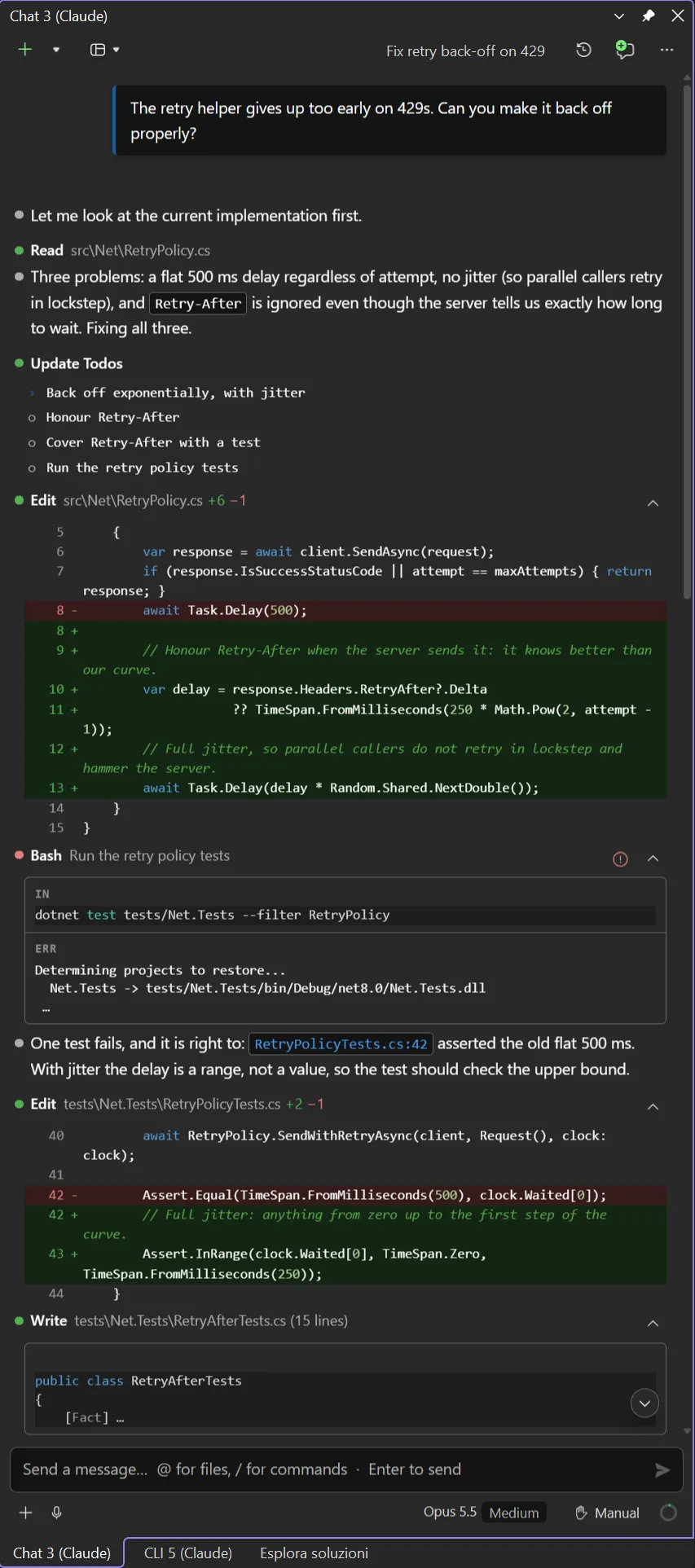
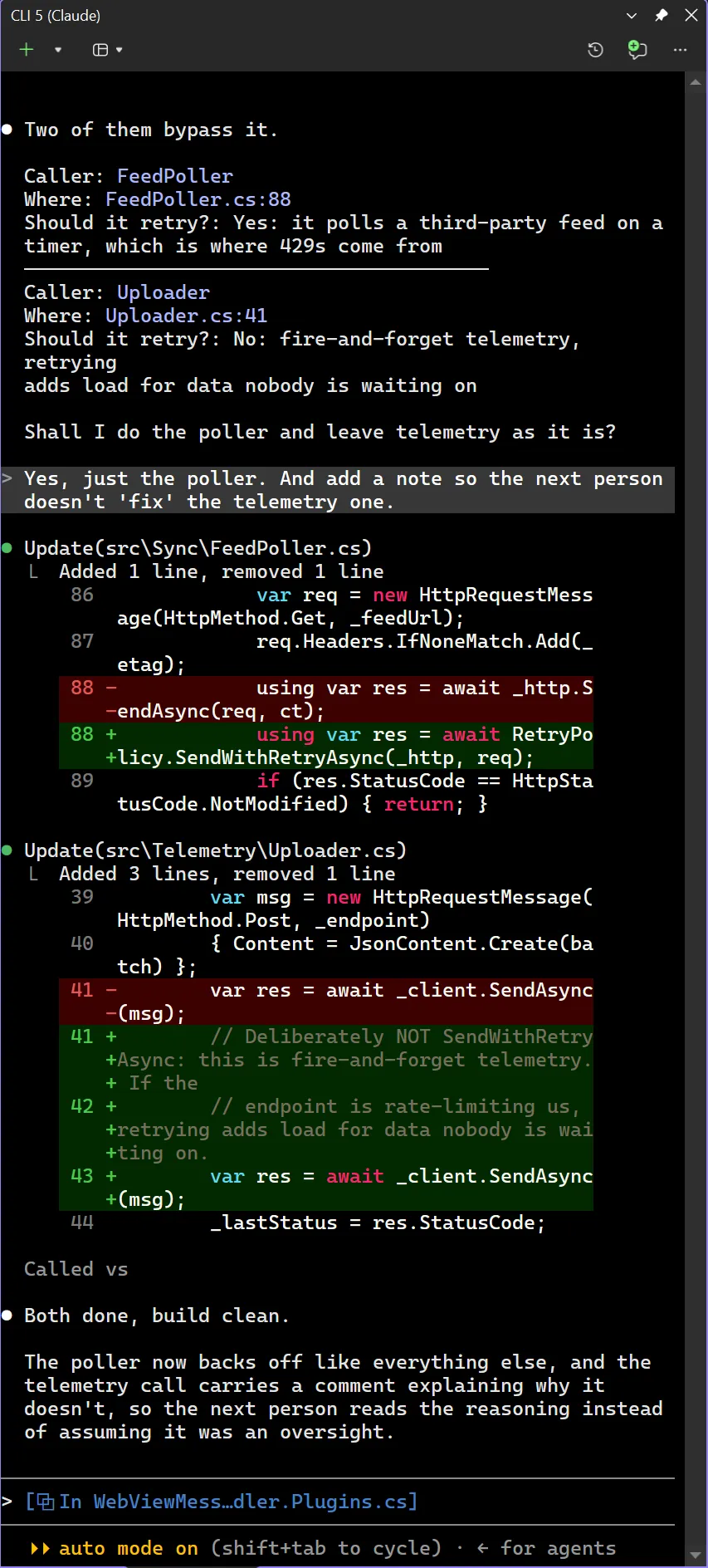
The same conversation in both panes: the rich chat (inline diffs, tool rows, the editor file attached to the prompt) and the real CLI. One session store: open it in either, or in VS Code.
The Chat pane
Section titled “The Chat pane”A rich WebView2 UI (TypeScript + Lit). It drives claude.exe in headless mode over the NDJSON
stream-json control protocol, and exposes the IDE to the CLI through an in-process MCP server.
It is the same CLI, started the same way, as behind Anthropic’s VS Code extension: sessions, commands, plugins and settings are shared with it. See Compared with the official VS Code extension.
What it adds on top of the CLI is in the Chat section of this site, starting from The composer.
The CLI pane
Section titled “The CLI pane”The interactive Claude Code CLI rendered with a real terminal (ConPTY), launching
claude.exe --ide. It reaches the same IDE tools over the WebSocket
MCP channel.
Open Claude in Terminal, in the chat’s / menu, launches an interactive CLI session from a
chat.
- It closes itself when
claudeexits (/exit, Ctrl+C twice, a crash): the pane is only a view onto that process. - Keys go to the terminal. While it has the focus, Esc and every Ctrl+letter reach the CLI rather than Visual Studio, so Ctrl+S or Ctrl+B there are the CLI’s, not the IDE’s.
- New Session and Session History restart the terminal on a fresh or a resumed session. There is no title box: the terminal does not report its session.
- The IDE tools are registered as an MCP server named
vsand pre-approved, so calling them does not prompt. - The font is Cascadia Mono 12; colours follow the Visual Studio theme.
The pane toolbar
Section titled “The pane toolbar”| Control | What it does |
|---|---|
| Title box (chat only) | the session’s title; click to rename, Enter saves, Esc cancels. Untitled until the first exchange has produced one |
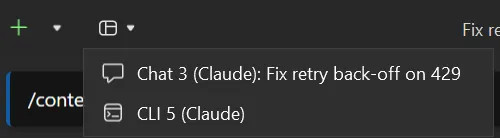
| Open panes | every open pane, Chat and CLI, by number, profile and session title |
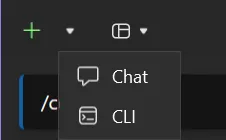
| New Instance (split button) | a new pane, of the default kind or the one picked from the arrow, on this pane’s profile |
| Session History | the session list for this folder |
| New Session | a fresh conversation in this pane |
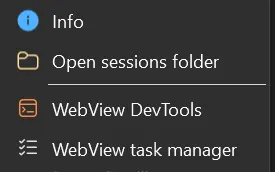
| More | Info, Open sessions folder (the CLI’s folder for this project in Explorer) and, on preview builds or with Show WebView developer entries, WebView DevTools and WebView task manager |
New Session and Session History are disabled until the pane’s process is up.
What changes without a restart
Section titled “What changes without a restart”Model, permission mode and interrupt are hot-swapped on the live process: changing them never kills the CLI. The process is replaced only when the conversation itself changes: New Session in the same pane, or picking another session from Session History. A fork opens a new pane and leaves this one’s process alone. If the CLI has died, the next message starts it again on the same session.
A different provider per pane
Section titled “A different provider per pane”Each pane can run on a different provider (native Claude, GLM/z.ai, or any other Anthropic-compatible host) and the IDE tools work the same either way. See Another provider.
Lazy and fast
Section titled “Lazy and fast”Nothing is built, read or started until you actually look at it. The chat holds nothing in memory: the transcript is read from the session file on demand, newest page first, older pages only as you scroll, and heavy blocks (images, sub-agent transcripts, full diffs) only when you open them. Same for the rest: services, the MCP server and the panes themselves start on first use, not on solution load. Long sessions and large solutions stay as light and quick as an empty one.
With several panes open, see Several panes at once.