
Ask from the editor
Right-click and the cv4vs Agents submenu offers a list of prompts. Picking one writes it into a chat pane’s composer, or sends it when Send on click is set. The list is yours to edit.
From the editor
Section titled “From the editor”Right-click code and the submenu offers Explain, Review, Find bugs, Write tests and Simplify. The prompt lands in the composer, so you can add the half line that matters; the file and selection travel with it, so the prompt itself is just the instruction.
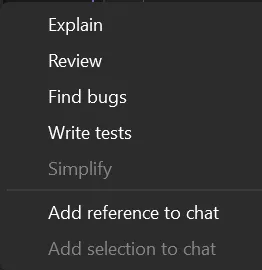
The prompts as shipped:
| Menu | Title | Prompt | Needs selection | Send on click |
|---|---|---|---|---|
| Editor | Explain | Explain what this code does. | no | no |
| Editor | Review | Review this code and point out what you would change, and why. | no | no |
| Editor | Find bugs | Look for bugs in this code. Say so plainly if you find none. | no | no |
| Editor | Write tests | Write tests for this code, following the ones already in this project. | no | no |
| Editor | Simplify | Simplify this code without changing what it does. | yes | no |
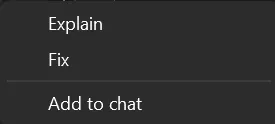
| Error List | Explain | For each of these, explain the cause and the fix. | - | yes |
| Error List | Fix | Fix these errors. | - | yes |
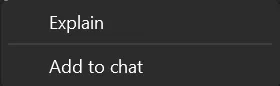
| Output | Explain | Explain this output. | - | yes |
From the Error List and the Output window
Section titled “From the Error List and the Output window”Right-click in the Output window or the Error List and the same cv4vs Agents submenu offers its own prompts: Explain and Fix in the Error List, Explain in the Output window. In the Error List it takes the rows you selected, with their file, line and project; in the Output window your selection, or the tail of the pane when you selected nothing: a build error is worth asking about without highlighting it first.
What a prompt is handed differs by menu, which is why each has its own list:
| Menu | What goes with the prompt |
|---|---|
| Editor | Nothing in the text: the file and selection travel through the IDE context. |
| Error List | The rows you selected (up to 40), one line each with severity, file, line and project, below the prompt. Greyed out with none. |
| Output | What you selected in the active pane, whichever it is (Build, Debug…), or its last 80 lines, below the prompt, fenced. Selecting only whitespace counts as selecting nothing. Greyed out when the pane is empty. |
The Error List and Output prompts ship with Send on click set, as the single “Explain” entry those menus used to have always sent.
Gathering pieces before the question
Section titled “Gathering pieces before the question”Below the prompts, past a separator, two fixed entries add to the composer instead of replacing it, so you can gather pieces from several files before writing the question. Neither sends, and neither touches the eye.
- Add reference to chat writes
@path#L12-18(or@pathwith no selection) on a line of its own. The CLI reads those lines from disk when the turn goes: whole lines, however much of them you selected, and without edits you have not saved yet. - Add selection to chat writes the selected text itself, in a fenced block headed by the path and lines: exactly what is on screen, down to the character. Greyed out with no selection.
The Error List and Output menus end the same way, with one Add to chat that adds what their prompts would be handed: the selected rows, the pane’s selection or tail, as a block below what the composer holds.
Solution Explorer and document tabs
Section titled “Solution Explorer and document tabs”Solution Explorer and a document’s tab have a cv4vs Agents submenu too, with Add reference to chat alone for now: the selected files, folders and projects (a project stands for its folder) as references, one per line; on a tab, the whole file. The entry is greyed out when nothing selected has a file or folder on disk.
Which pane receives
Section titled “Which pane receives”The most recently opened chat pane, brought to the front: CLI panes are never the target. With none open, a Chat pane is opened on the native Claude profile. If the IDE-context eye was shut, it is re-opened with the prompt: asking about this code with nothing saying which file it is would reach the CLI as a question about nothing.
Editing the prompts
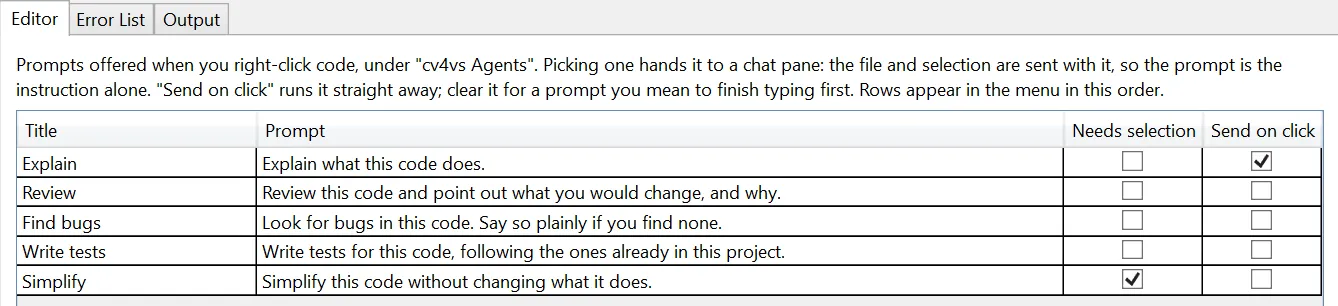
Section titled “Editing the prompts”Tools → Options → cv4vs Agents → Prompts is not a settings table but an editor: one tab per menu (Editor, Error List, Output).
| Column | Meaning |
|---|---|
| Title | What the menu item reads. |
| Prompt | What reaches the composer. The instruction alone: which file and which lines travel with it through the IDE context, and Claude reads the symbol itself with the nav_* tools, so pasting code in here only duplicates what the pane already points at. |
| Needs selection | Editor tab only. Greys the entry out when nothing is selected, the way Copilot greys “Optimize selection”. Selecting only whitespace counts as nothing; a single character does not. Leave it off for prompts that read fine against the whole file. |
| Send on click | Sends the turn right away, exactly as pressing the send button would: file and selection included. Off by default: the prompt waits in the composer so you can add the half line that matters. |
Rows appear in the menu in the order listed, so the one you reach for most belongs at the top: the arrows under the grid move the selected row. The other buttons add a row, delete the selected one, and replace the tab’s list with the prompts the extension ships with (after a confirmation, and for that tab alone). A row needs both a title and a prompt: Apply is refused until every row has them. Delete every row and that menu simply has no prompts.
Like profiles, these are not in the VS settings store: they live in prompts.json so the
menus can be built without opening the Options page first; see
Settings and data.
The file is an object with one list per menu (Editor, ErrorList, Output); each entry has
Title, Prompt, RequiresSelection and SendImmediately. Edit it by hand if you like, but the
menus keep the list in memory: the change shows after you open Options → Prompts and press OK, or
after restarting Visual Studio. A menu whose key is missing gets the shipped prompts; a key holding
[] stays empty.