
Options
All settings live under Tools → Options → cv4vs Agents, split into five pages: General, Chat, Debug, Prompts and Profiles.
Visual Studio persists them in its own settings store; profiles, per-solution state and caches
go to %LOCALAPPDATA%; see Settings and data.
General
Section titled “General”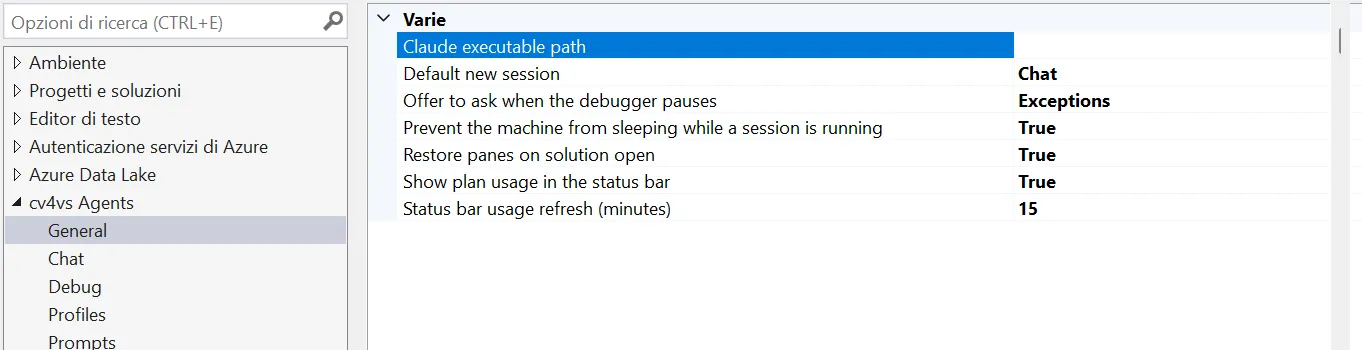
| Setting | Type | Default | Description |
|---|---|---|---|
| Restore panes on solution open | bool | false |
Reopen the panes (with their sessions) that were open for a solution when it is reopened. |
| Offer to ask when the debugger pauses | Never / Exceptions / ExceptionsAndBreakpoints |
Exceptions |
Show an InfoBar over the file the debugger stopped in, with an “Ask cv4vs Agents” link that asks a chat pane about the break. See Asking about a break. |
| Default new session | Chat / Cli |
Chat |
Which kind of pane the “New” button creates, and which kind a profile under View → cv4vs Agents opens. The dropdown beside “New” still lets you pick the other. |
| Prevent the machine from sleeping while a session is running | bool | true |
Keep Windows awake while a chat pane is working, so a turn is not suspended half-way through and left hung. The display still sleeps on its own timer, and an idle pane holds nothing. A CLI pane never holds: a terminal has no notion of a turn. See Keeping the machine awake. |
| Claude executable path | file path | (empty) | Override auto-detection with a specific claude.exe (browse with …). Empty = auto-detect via PATH / native installer / npm. Must be the real .exe: .cmd/.bat/.ps1 shims can’t be launched. A path that does not exist, or is not an .exe, is not an error: auto-detection takes over and a warning goes to the log. See Troubleshooting. |
| Show plan usage in the status bar | bool | true |
The Claude plan’s session (5h) and weekly (7d) usage in Visual Studio’s status bar, for the profile of the pane you last used; click it for every limit and when each resets. Shown only while a pane is open: with none there is nothing being spent. See Usage → Status bar. |
| Status bar usage refresh (minutes) | int | 15 |
How often the status bar refreshes plan usage while the profile it shows has no chat pane open (a CLI pane only), by starting a short-lived claude.exe, only while Visual Studio is in front. 0 = never in the background: open chat panes, and opening the status bar popup, still refresh it. |
Asking about a break
Section titled “Asking about a break”When the debugger stops, an InfoBar appears over the file it stopped in, with an Ask cv4vs Agents link that asks a chat pane about the break. Exceptions raise it by default, the other pauses that are not a step are opt-in, steps never do. The whole story is in Debug with the agent.
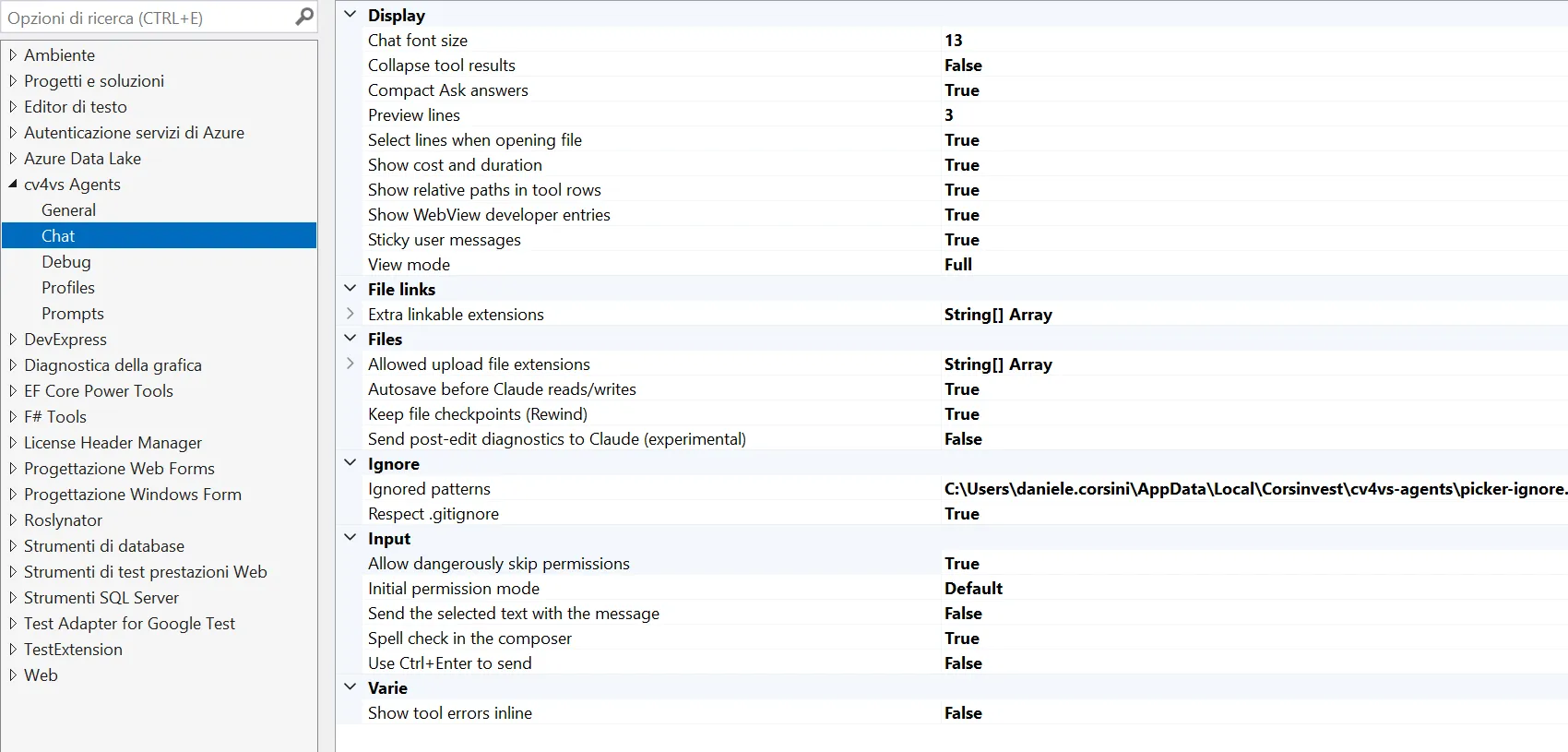
The page groups its settings in categories, in alphabetical order; the tables below follow them.
Display
Section titled “Display”| Setting | Type | Default | Description |
|---|---|---|---|
| Show cost and duration | bool | false |
Show cost (USD) and duration after each response. |
| Show relative paths in tool rows | bool | true |
File paths relative to the working directory (full path if outside it). |
| Select lines when opening file | bool | true |
When opening a file from a tool row, select the relevant lines in the editor. |
| Preview lines | int | 3 |
Lines shown in preview areas (tool output, user messages) before a body is clipped. 0 shows an open row whole, however long it is. |
| Collapse tool results | bool | false |
Start every tool row closed, so a long session reads as what Claude did rather than how it got there. The chevron opens one when you want it; a failed row still shows its dot and the button that opens the full output. |
| View mode | Full / Focus / HideToolCalls |
Full |
How much of Claude’s work the chat shows. Full: every row. Focus: each run of tool calls and thinking between two replies folds into one row (5 tool calls · 1 failed, or Running Bash… while it works) that opens in place. HideToolCalls: the tool rows are removed. In every mode your answers to questions, plan decisions, the task list and a call waiting for your approval stay. The View mode entry in the chat’s / menu switches it for every open chat, keeping each row as it was: open or closed, older history kept. Changed here instead, it reloads each idle chat like any other setting on this page. |
| Chat font size | int (px) | 13 |
Font size of the chat message text. |
| Show WebView developer entries | bool | false |
Add “WebView DevTools” and “WebView task manager” to the chat toolbar’s “More” (…) menu: the browser console/DOM/network on the chat itself, and the browser’s processes with their memory and CPU. Pre-release builds always offer both. |
| Sticky user messages | bool | true |
Pin the current exchange’s user message at the top while the reply/tool rows scroll below. |
File links
Section titled “File links”| Setting | Type | Default | Description |
|---|---|---|---|
| Extra linkable extensions | string[] | (empty) | Extensions to also linkify when Claude names a file in prose (render.wgsl:20), on top of the ~270 built-in ones, needed only for a language not shipped yet. A markdown link written by the model is always linked, whatever its extension. One per line, without the dot. See Clickable file references. |
| Setting | Type | Default | Description |
|---|---|---|---|
| Autosave before Claude reads/writes | bool | true |
Save a dirty file before Claude reads/writes it, so it sees your in-editor edits, not the stale on-disk version. |
| Keep file checkpoints (Rewind) | bool | true |
Let Claude copy a file before editing it, so /rewind can restore it. Only files Claude edits are covered: what it changes by running a command is not. Copies live under ~/.claude/file-history and are never cleaned up, the reason to turn this off if you do not use Rewind. Read when a chat starts, so it applies to the next one you open. |
| Send post-edit diagnostics to Claude (experimental) | bool | false |
Feed back the new errors/warnings an edit introduced. Experimental: unreliable because VS only analyses files open in an editor (see Editor context). |
| Allowed upload file extensions | string[] | 100 defaults | Extensions accepted on upload/drop. Images (.png, .jpg, .gif, .webp) are sent as images, .pdf as a document, the rest as text. Video files are listed so they can be attached, but Claude cannot watch them and only sees the file name. Anything not listed is rejected with a notice. One entry per line, with or without the leading dot. |
Ignore
Section titled “Ignore”| Setting | Type | Default | Description |
|---|---|---|---|
Respect .gitignore |
bool | true |
Also hide from the @ picker what the workspace’s .gitignore files (at every level inside it, none above it) and git’s global excludes (core.excludesFile) match, inside a git repository or not. Off: only the Ignored patterns below apply. |
| Ignored patterns | file path | shipped defaults | Extra rules hiding files from the @ picker, written as a .gitignore and kept as one: the row shows where the file is and … opens it in the editor. Applied only where the workspace’s own ignore rules say nothing, so they are the fallback for a project that ships none. The picker lists the whole workspace, with no limit on the number of files: the list is read when the @ menu opens and filtered as you type. |
| Setting | Type | Default | Description |
|---|---|---|---|
| Send the selected text with the message | bool | false |
Attach the selected code itself, not just its file and line numbers. Off, the message names the lines and Claude opens the file to read them: the same content, but only if it needs it, and only once. On, the code travels with every message sent with a selection. Turn it on when you ask about code you have not saved: off, Claude reads the file from disk and sees the saved version. The composer’s context chip shows which of the two is going out (🔖 position / 🧾 position + code). See Spending less context. |
| Use Ctrl+Enter to send | bool | false |
On: Ctrl+Enter sends, Enter = newline. Off: Enter sends, Shift+Enter = newline. |
| Spell check in the composer | bool | false |
Underline misspelled words while you type. Off by default: code names, paths, @ mentions and / commands are what the composer mostly holds, and the spell checker flags all of them. The underline marks the word; correcting it is up to you. |
| Initial permission mode | Default / Manual / AcceptEdits / Plan / BypassPermissions |
Default |
Mode every new chat starts in (changeable per-session from the toolbar). Default leaves it to Claude Code: the permissions.defaultMode of your settings.json (user or folder), or the mode it picks by itself when there is none (which may be Auto), as in a terminal. Manual always asks before edits, whatever settings.json says. BypassPermissions also requires Allow dangerously skip permissions below: without it, sessions start in Manual. |
| Allow dangerously skip permissions | bool | false |
Adds “Bypass permissions” to the toolbar’s permission menu: a mode that never asks, even for commands that can destroy data. Enabling it skips nothing by itself: the mode still has to be selected. Takes effect on new sessions. |
The one setting with no category of its own; the page lists it last, under Misc.
| Setting | Type | Default | Description |
|---|---|---|---|
| Show tool errors inline | bool | false |
Show the tool error inline below the diff/output; off = alert icon only (click to open in VS). |
| Setting | Type | Default | Description |
|---|---|---|---|
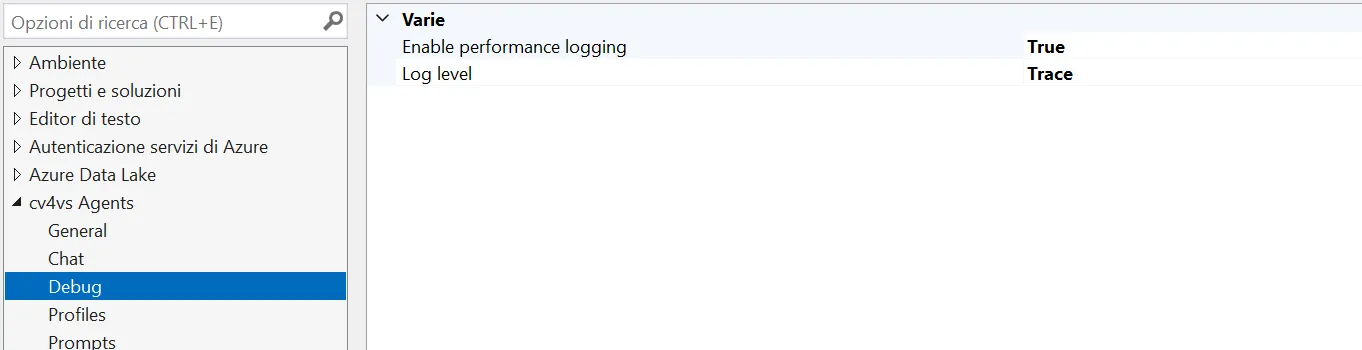
| Log level | None / Error / Warn / Info / Debug / Trace |
None |
Output-window verbosity. None = silent; Trace = include bridge traffic. Lines are prefixed with the originating pane ([chat#2], [cli#1]) so several open panes can be told apart in the single Output pane. |
| Enable performance logging | bool | false |
Performance-span logging in the Output window (C#) and browser console (JS). Requires a VS restart. |
Profiles
Section titled “Profiles”Not a settings table but an editor: each profile is a named set of environment variables (e.g.
ANTHROPIC_BASE_URL, ANTHROPIC_AUTH_TOKEN, model overrides) injected into that pane’s
claude.exe, so a pane can run on a different provider while the IDE MCP tools keep working.
Profiles are not stored in the VS settings store: they live in profiles.json. Creating one, Paste
from JSON and the provider setup guides are in
Another provider.
Prompts
Section titled “Prompts”Not a settings table but an editor: the entries offered under cv4vs Agents when you right-click code, the Error List or the Output window: one tab per menu. Picking one writes it into a chat pane’s composer, or sends it when Send on click is set.
Like profiles, these live in a file, prompts.json. The columns, what each menu hands the prompt
and the fixed Add to chat entries are in
Ask from the editor.