
Sessions
One store, shared
Section titled “One store, shared”No separate database: the extension reads and writes the CLI’s own session store, so a conversation started in the VS Code extension or in a terminal shows up here, and vice versa. Resume, fork and rename all work on those shared files, so you can switch editor mid-project without losing context.
Where those files are is in Settings and data.
The session list
Section titled “The session list”Session History, on the pane’s toolbar: list, select-to-resume, inline rename, delete (with confirmation).
A search box filters by title as you type; Enter opens the first match, ↓ moves into the list, Esc
closes. The session the pane is on carries a ✓. Each row shows how long ago it was used (just now, 12m, 3h, 5d, then the date); the tooltip has the full id and timestamp.
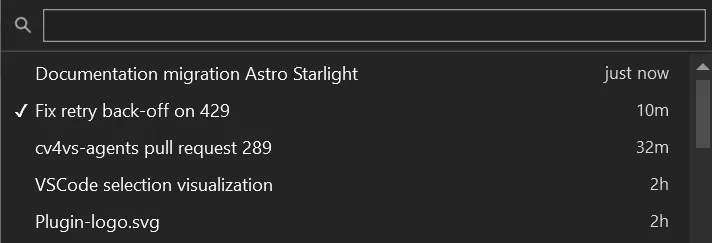
A session is listed under a title chosen in this order: your rename, the AI-generated title, the last prompt, cut to 60 characters on one line. Sessions in which no prompt was ever sent, and sub-agent transcripts, are left out.
Delete asks first (Delete session “…”? This cannot be undone.) and removes the transcript only. The session’s file backups stay, and show up in File history under Sessions no longer on disk.
The list is always read fresh from the .jsonl files on disk each time you open it, with no cached
index that can go stale, so a session started or renamed elsewhere (VS Code, the CLI) shows up
immediately. It stays fast by reading files in parallel with head+tail 64 KB windows, never loading
whole files.
Sessions get AI-generated titles: asked of the live CLI once, after the first exchange, and written only if the session has no title yet. New Session starts a fresh conversation in the same pane; the New Instance split button opens a new pane, Chat or CLI: which is the default is Default new session under Options → General.
Hover a message of yours and choose Fork conversation from here. A new pane opens on a new session holding everything before that message, with the message itself waiting in the composer, ready to be changed and sent. The original is left alone.
To put the files back without leaving the conversation, see Rewinding files.
Session info
Section titled “Session info”Info, in the pane’s More (…) menu: the session’s title, id and .jsonl path, the working directory and
profile, and which claude.exe is running it (path, version and PID). Chat panes add what the page
currently weighs. A Copy button puts the whole report on the clipboard, for a bug report.
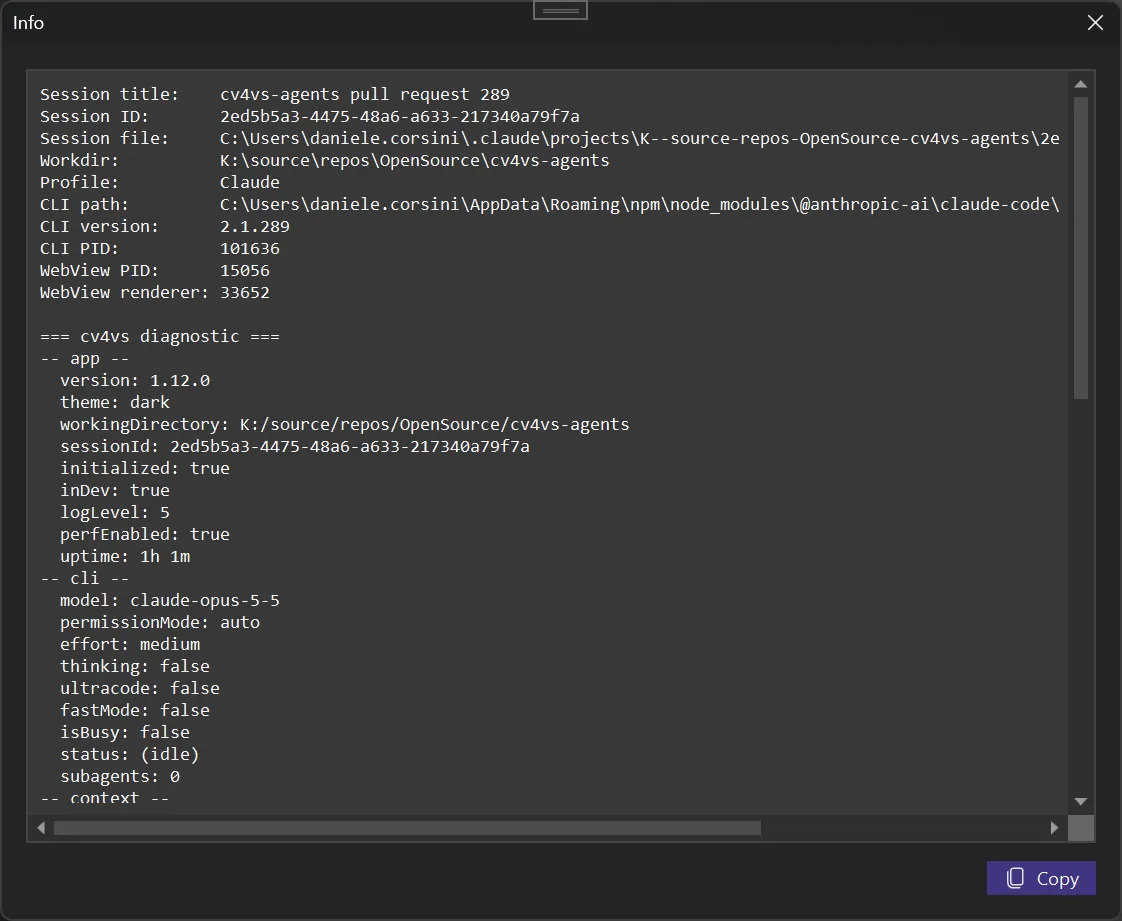
The first thing to open when something is running against the wrong session, the wrong folder, or the wrong CLI.
Restoring panes with the solution
Section titled “Restoring panes with the solution”Restore panes on solution open (opt-in) reopens the panes you had open for a solution, each on its own session and profile. See Several panes at once.