

The main window
After login the main window lists the VMs and containers of the cluster that the account may use, grouped by node. Each guest has a Connect button with its consoles and services.
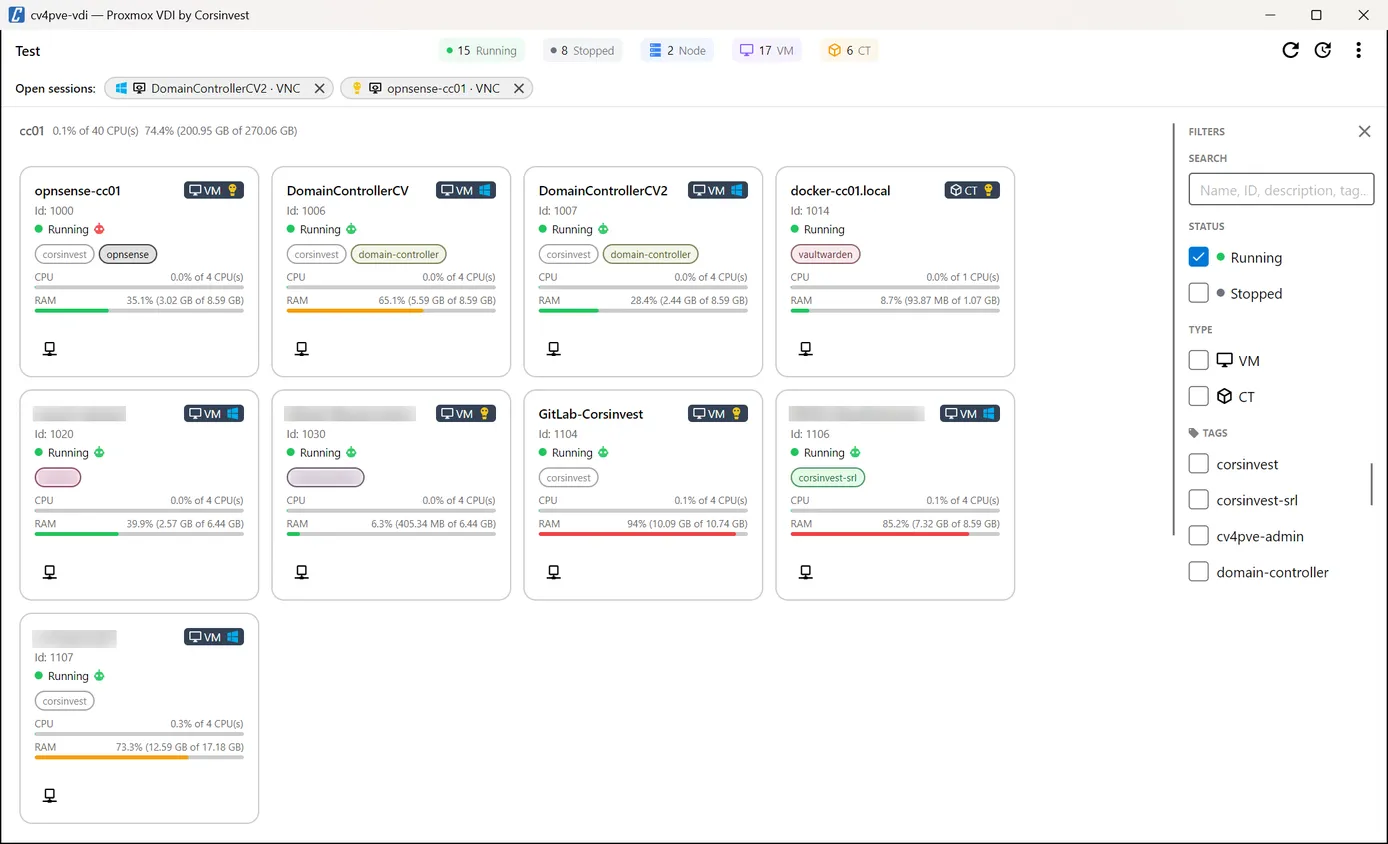
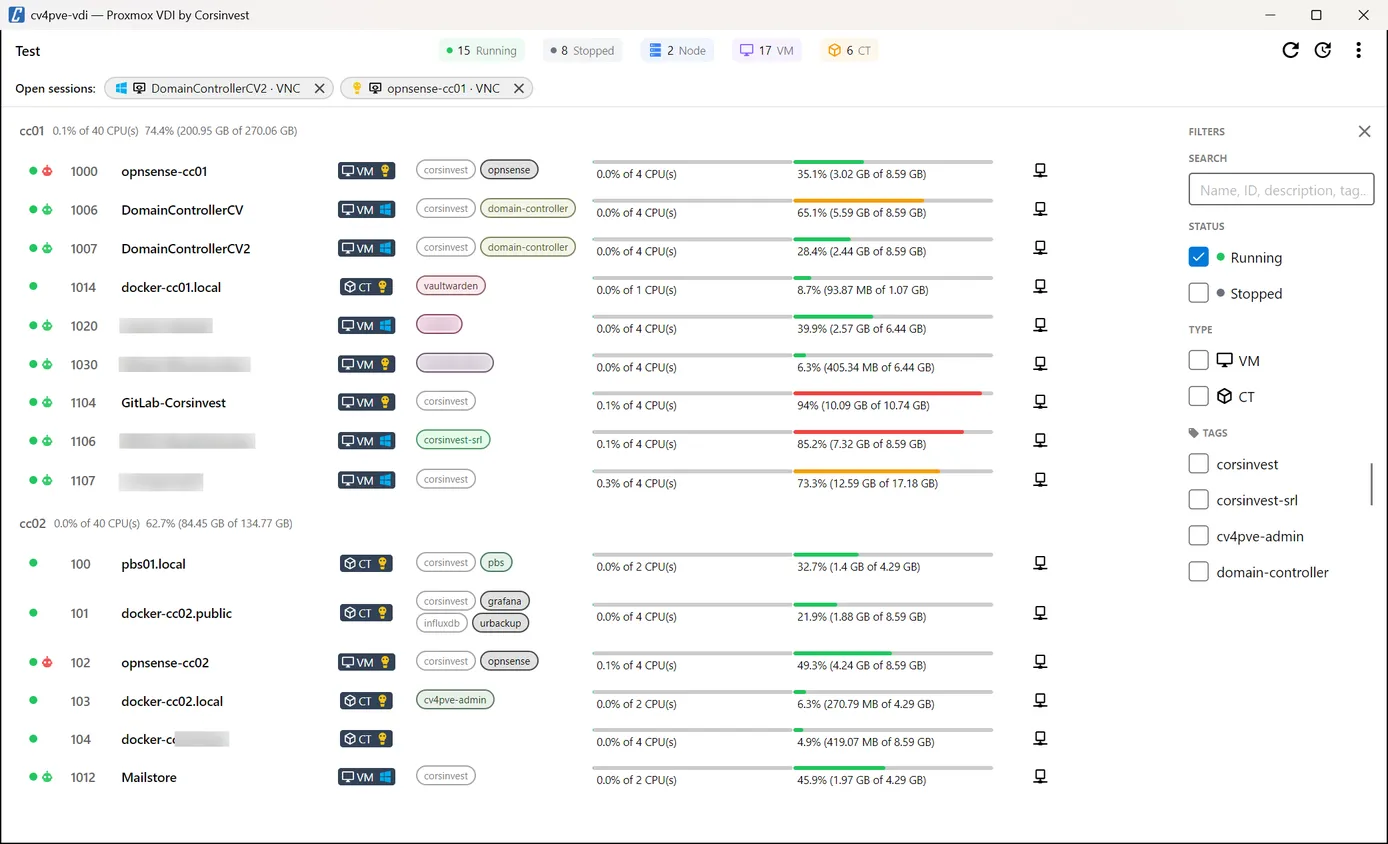
Top bar
Section titled “Top bar”- Cluster name, on the left.
- Counters: running and stopped guests, nodes, VMs, containers, of everything the account can see, whatever the filters.
- Refresh (
F5) reloads the list from the cluster. - Auto-refresh refreshes every 30 seconds while on (a
30slabel shows it). It is off at start and turns on by itself after a Start or Shutdown click, so the new state shows up. - ⋮ More: the version, a new release when there is one (with a red dot on the button), Settings
(
Ctrl+,), Switch user, and links to documentation, release notes, support, bug reports and feature requests.
Cards and list
Section titled “Cards and list”The view (cards or a compact list) is chosen in Settings → Appearance, together with grouping by node and sorting by ID or name. Each guest shows:
| Element | What it tells you |
|---|---|
| Name and VM / CT badge | Type of guest; for VMs the Windows or Linux logo follows the OS type set in Proxmox VE, containers show Linux |
| Id | VMID, followed by the pool when Show pools is on |
| Status icon | Green play running, amber pause paused, grey stop stopped; the state is in the tooltip |
| Agent icon | Only for VMs with the QEMU guest agent enabled in their options: green when the agent answers, red when it does not, grey when Ping guest agent is off or the VM is stopped; see Guest setup |
| SPICE | The VM has a SPICE display. Icons follow for what its configuration adds: audio (an audio device with the SPICE driver), USB (a USB port redirected to SPICE), folder sharing, and the number of monitors when more than one. The list is in the tooltip |
| Tags | Proxmox VE tags, in the colours of the datacenter tag style; a tag without a colour there gets one computed from its name |
| CPU and RAM bars | Current usage; the bar turns amber above 60% and red above 80% |
| Buttons | Start, Shutdown and Connect |
Node headers show the node’s CPU and memory use when the account has Sys.Audit on the node.
Which guests appear
Section titled “Which guests appear”cv4pve-vdi shows a guest only when there is something the account can do with it:
| Guest | Shown when |
|---|---|
| Running VM | The account has VM.Console on it, or the VM has a SPICE display and SPICE is on in Settings → Launchers |
| Running container | The account has VM.Console on it |
| Stopped VM | The account has VM.PowerMgmt on it (so it can be started), or its display is SPICE (qxl… or virtio…) and SPICE is on in Settings → Launchers |
| Stopped container | The account has VM.PowerMgmt on it |
Guests the account cannot audit are never returned by Proxmox VE. The Status filter starts with Running ticked: tick Stopped too, or reset the filters, to see stopped guests.
Filters
Section titled “Filters”The panel on the right filters the list; within a section, ticking nothing means no filter.
- Search (
Ctrl+F): name, VMID, description or tag. - Status: running, stopped.
- Type: VM, CT.
- Node, Pool, Tags: shown when turned on in Settings → Appearance. Pools and tags list only those of the guests cv4pve-vdi shows.
- × next to Filters clears every filter, Running included.
When the filters hide everything, the window says so instead of staying blank.
Start and Shutdown
Section titled “Start and Shutdown”With Show Start button and Show Shutdown button on in Settings → Appearance, guests the account may
power (VM.PowerMgmt) get a green Start button when stopped and a red Shutdown button when running.
Shutdown asks the guest to shut down, as the power button would; it does not stop it. Ask confirmation
adds a question before each click.
Connect
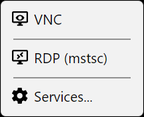
Section titled “Connect”The Connect button opens a menu with, in this order:
- SPICE and VNC, when available, see SPICE and VNC;
- the services configured for the guest, for the launchers of this operating system;
- Services…, to configure them (admin password in kiosk mode).
Open sessions
Section titled “Open sessions”Every viewer or launcher started from cv4pve-vdi appears in a strip at the top of the window, with the guest’s OS, the protocol and the guest name. The strip hides itself when nothing is open.

- Click a session to bring its window to the front, useful in kiosk mode, where there may be no taskbar.
- × closes it: cv4pve-vdi asks the window to close and ends the process if it is still running after one second.
Closing cv4pve-vdi or using Switch user with sessions open asks for confirmation, then closes them, so the next person does not find the previous user’s sessions.
A session stays in the strip as long as the process cv4pve-vdi started is running. Launchers that hand
the window over to another process and exit (osascript for the macOS Terminal, for example) do not stay
in the strip.
Bringing a window to the front uses what each system offers: on Linux it needs xdotool and an X11
session (Wayland does not allow it); on macOS the system asks once for the Accessibility permission.
Switch user
Section titled “Switch user”⋮ → Switch user goes back to the login window without closing the application, for shared workstations and thin clients. Open sessions are closed after confirmation, and in kiosk mode the admin unlock is cleared.
Keyboard shortcuts
Section titled “Keyboard shortcuts”| Keys | Action |
|---|---|
Ctrl+F |
Search |
F5 |
Refresh |
Ctrl+, |
Settings |