

Kiosk mode
A thin client or a shared PC in a lab, a classroom or a reception desk should do one thing: let whoever sits in front of it log in with their own Proxmox VE account and open their VMs. Kiosk mode turns cv4pve-vdi into that:
- the login window and the main window open full-screen;
- Launchers, Clusters and most appearance settings are hidden, the Services… window and the Kiosk tab ask for an admin password;
- closing the application asks for the admin password;
- Switch user hands the workstation to the next person without restarting the application.
Who sees which VMs does not change: it is always the Proxmox VE account that logs in; see Permissions. cv4pve-vdi keeps no user list of its own.
Turn it on
Section titled “Turn it on”-
Configure the computer first: clusters, viewer path, launchers. Once kiosk mode is on, those need the admin password.
-
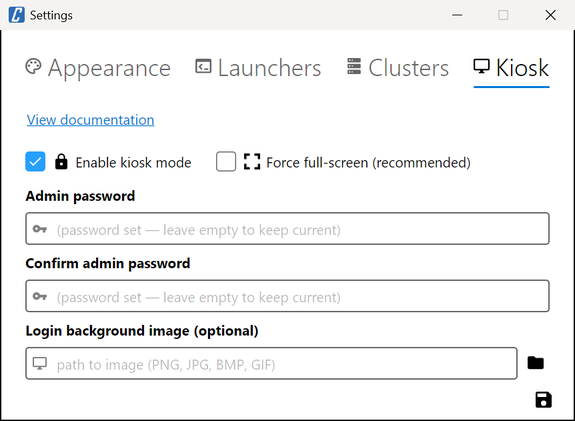
⋮ → Settings → Kiosk, tick Enable kiosk mode.
-
Type the Admin password twice. It is required to turn kiosk mode on.
-
Optional: Force full-screen (on by default) and a Login background image (PNG, JPG, BMP or GIF), shown full-screen behind the login form, for a logo or a wallpaper.
-
Save. The admin password is asked from now on; full-screen and the protection of the close button apply from the next login window.
When re-saving with a password already set, leave both password fields empty to keep it.
What changes
Section titled “What changes”| Without admin password | After the admin password | |
|---|---|---|
| Settings → Appearance | Theme, View, Group by node, Sort by | All options |
| Settings → Launchers, Clusters | Hidden | Shown |
| Settings → Kiosk | Asks for the admin password | Shown |
| Cluster settings from the login window | Asks for the admin password | Allowed |
| Connect → Services… | Asks for the admin password | Allowed |
Closing the window (✕, Alt+F4) |
Asks for the admin password | Allowed |
| Switch user | Allowed | Allowed |
| Documentation, release notes, support, bug and feature links in ⋮ | Hidden | Shown if the password was entered before logging in (gear of the login window) |
| Connecting to VMs, filters, Start and Shutdown | As usual | As usual |
After the password has been entered once, cv4pve-vdi stays unlocked until the application is closed or Switch user is used, so an administrator can change several things in a row. When the password is entered from the Kiosk tab, Settings closes and reopens with every tab visible.
Force full-screen
Section titled “Force full-screen”With Force full-screen on, the login window and the main window open full-screen, and the login form is centred on the screen. Leave it on when cv4pve-vdi runs on top of a normal desktop.
Turn it off when something else already sizes the window: cv4pve-vdi replacing the desktop shell, a tiling window manager, or a kiosk on part of the screen. The other restrictions stay in place.
Switch user
Section titled “Switch user”⋮ → Switch user returns to the login window. Viewers and sessions still open are closed after confirmation, so the next person does not find them, and the admin unlock is cleared. On a thin client without a taskbar, the Open sessions strip is how users get back to a viewer window.
Make it the only application
Section titled “Make it the only application”Kiosk mode locks cv4pve-vdi; it does not stop someone from leaving it for the desktop underneath. That is done by the operating system:
-
Windows: Assigned Access or Shell Launcher start cv4pve-vdi as the only application of a dedicated local user.
-
Linux: a display manager session whose only program is cv4pve-vdi, with automatic login of a dedicated user, for example
/usr/share/xsessions/cv4pve-vdi.desktop:[Desktop Entry]Name=cv4pve-vdiExec=/opt/cv4pve-vdi/cv4pve-vdiType=Application
The settings, kiosk flag and password hash are in ~/.cv4pve/vdi/config in the home folder of the user
running cv4pve-vdi. cv4pve-vdi rewrites that file when someone logs in (to remember the username) and when
settings are saved, so it must stay writable by that user.
Forgotten admin password
Section titled “Forgotten admin password”The password is stored as a PBKDF2-SHA256 hash (100,000 iterations, random salt) and cannot be recovered.
Close cv4pve-vdi from the operating system, open ~/.cv4pve/vdi/config and set kiosk: false and
kiosk-admin-password-hash: ''. cv4pve-vdi then starts without kiosk mode, and turning it on again in the
Kiosk tab asks for a new password.