

# install
PS> winget install Corsinvest.cv4pve.pepper
PS> winget install RedHat.VirtViewer

# open the console of VM 100
PS> cv4pve-pepper --host=pve01 --api-token='pepper@pve!console=…' --vmid=100 `
PS>   --viewer="C:\Program Files\VirtViewer v11.0-256\bin\remote-viewer.exe"
# install (x64 — arm64 and arm on the Releases page)
$ wget https://github.com/Corsinvest/cv4pve-pepper/releases/latest/download/\
cv4pve-pepper-linux-x64.zip
$ unzip cv4pve-pepper-linux-x64.zip
$ chmod +x cv4pve-pepper
$ sudo apt install virt-viewer

# open the console of VM 100
$ ./cv4pve-pepper --host=pve01 --api-token='pepper@pve!console=…' --vmid=100 \
$   --viewer=/usr/bin/remote-viewer
# install (remote-viewer: see Getting started)
$ brew install corsinvest/tap/cv4pve-pepper

# open the console of VM 100
$ cv4pve-pepper --host=pve01 --api-token='pepper@pve!console=…' --vmid=100 \
$   --viewer=/path/to/remote-viewer
The console of any Proxmox VE VM, one command away
In Proxmox VE the console of a VM is a few clicks away in the web interface: log in, find the VM, open
Console, or download a .vv file for SPICE and open it before its ticket expires. That is fine once. It is
not when the same people open the same VMs every day, when a script has to show a console, or when a user
should only get an icon on the desktop, not the whole web interface.
cv4pve-pepper does those steps in one command. It asks the API for a console ticket, writes the file for the
viewer and starts remote-viewer with it — so the console can be a shortcut, a line in a script or a menu
entry.
One command. Any VM. SPICE or VNC.
Section titled “One command. Any VM. SPICE or VNC.”SPICE for the full desktop experience, VNC for every running VM and container — switch with a single flag.
cv4pve-pepper --host=pve01 --api-token='pepper@pve!console=…' --vmid=webserver --viewer=/usr/bin/remote-viewer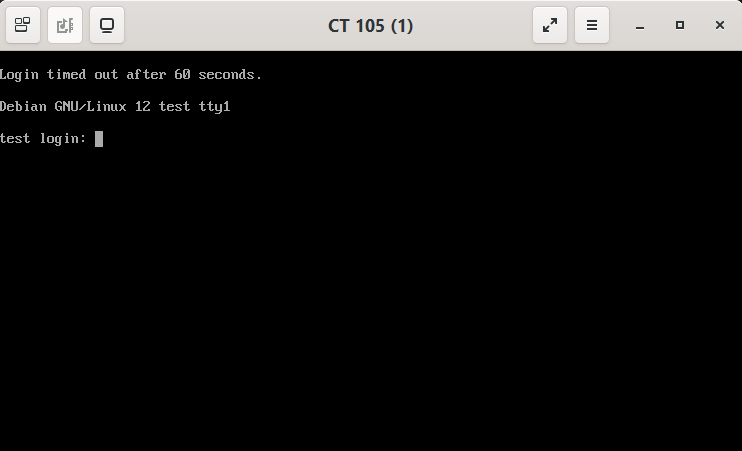
cv4pve-pepper --host=pve01 --api-token='pepper@pve!console=…' --vmid=webserver --viewer=/usr/bin/remote-viewer --vnc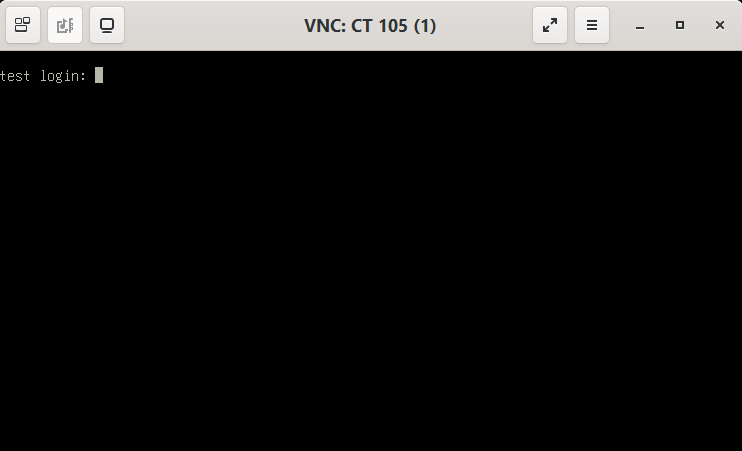
- pepper connects to
pve01and looks upwebserverin the cluster, on whichever node it runs. - For SPICE it asks Proxmox VE for a SPICE ticket and writes a
.vvfile in the temporary folder; for VNC (--vnc) it opens a local bridge to the console. - It starts
remote-viewer, which opens the console window and deletes the.vvfile once read. - With SPICE pepper exits at once and the viewer stays open; with VNC pepper keeps the bridge open until you close the viewer.
Where it fits
Section titled “Where it fits”cv4pve-pepper opens one console, from the command line. Its companion cv4pve-vdi is the desktop application for people who pick their VM from a list. Both use the same console code, so SPICE and VNC behave the same way.
| cv4pve-pepper | cv4pve-vdi | |
|---|---|---|
| What it is | Command-line tool | Desktop application |
| You choose the VM | On the command line or in a parameter file | From the list of the VMs you may use |
| Consoles | SPICE, VNC | SPICE, VNC, plus RDP, SSH and custom services |
| Login | API token or user and password, in options or a file | User and password, per person |
| Best for | Shortcuts, scripts, one console per icon | Users working on several VMs every day |
| Access | Proxmox VE API only, from outside the nodes | Proxmox VE API only, from outside the nodes |
Outside the nodes, API only
Section titled “Outside the nodes, API only”cv4pve-pepper runs on the computer where the console should appear and talks only to the Proxmox VE REST API on port 8006 — plus the SPICE proxy on port 3128 for SPICE. Nothing is installed on the nodes and no SSH is needed: an account with the privileges in Permissions is enough. Give it more than one node and it connects to the first one that answers.
What it does for you
Section titled “What it does for you”SPICE or VNC
SPICE for VMs with a SPICE display and for containers; --vnc for any running VM or container, with no display setting to change.
02By id or by name
--vmid takes the id, the name (any case) or a part of the name, so a shortcut keeps working when the VM moves to another node.
03Starts it for you
--start-or-resume starts a stopped guest or resumes a paused one, waits for the start task and opens the console.
04One icon per VM
Put the connection and the VM in a parameter file and make a desktop shortcut to it: one double-click opens the console.
05VNC through the API port
The VNC console travels inside the API connection on port 8006: nothing else to open in the firewall.
06Any node as SPICE proxy
SPICE goes through the spiceproxy on port 3128 of the node you connect to, or of the node you name with --proxy.
Open your first console
Install cv4pve-pepper and remote-viewer, point it at any node, name the VM.
 Made by Corsinvest,
official Proxmox partner