SPICE and VNC
Both consoles open in remote-viewer and show the guest’s screen as the Proxmox VE console does, from boot
onwards: they work before the guest OS has a network, or while it is broken. VNC clients such as TigerVNC do
not work, also for --vnc: pepper passes the viewer a .vv connection file, which only remote-viewer reads.
Which one
Section titled “Which one”| SPICE (default) | VNC (--vnc) |
|
|---|---|---|
| Works on | Running VMs with a SPICE display; running containers | Every running VM and container |
| Needs | VM.Console; for VMs, Hardware → Display set to SPICE |
VM.Console |
| Network | Client → SPICE proxy on port 3128 | Client → API port (8006) only |
| pepper | Exits once the viewer has started | Runs until the viewer is closed |
| Extras | Audio, USB redirection, clipboard, folder sharing, several monitors — with the SPICE guest tools | Screen, keyboard and mouse |
SPICE is the better desktop experience; VNC is the one that works on any VM without changing its display.
A VM offers SPICE when its display is set to SPICE (qxl, qxl2, qxl3, qxl4) in Hardware →
Display. On another display pepper stops with ERROR: no spice port: use --vnc, or change the display
and restart the VM. For containers Proxmox VE provides the SPICE console of the container’s terminal.
pepper asks the API for a SPICE ticket (POST …/spiceproxy), writes the connection file (.vv) in the
temporary folder and starts remote-viewer with it. The file holds a one-time ticket and the viewer deletes
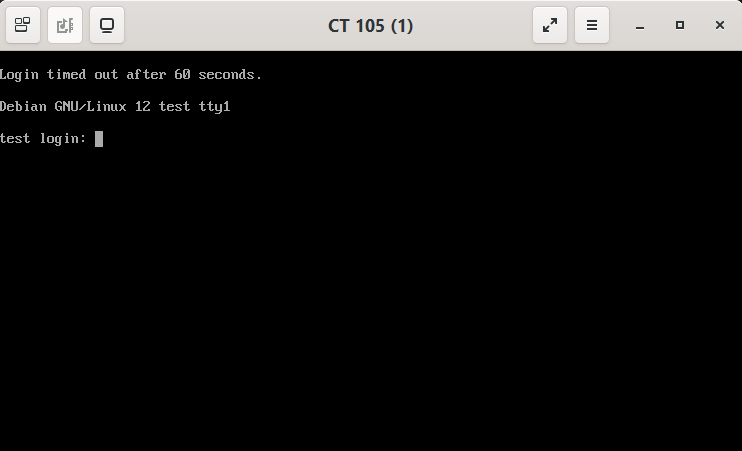
it once read. The window title comes from Proxmox VE:
What SPICE adds over VNC — sound, USB devices of your computer in the VM, clipboard, folder sharing — depends on the VM configuration and on the SPICE guest tools inside it: see SPICE in the Proxmox VE wiki.
SPICE proxy
Section titled “SPICE proxy”remote-viewer does not connect to the node running the VM, but to a SPICE proxy: the spiceproxy
service every Proxmox VE node runs on port 3128, which forwards the connection to the right node.
By default the proxy is the host pepper connected to (--host). When your computer reaches the cluster by
another address — a node behind NAT, a different name from outside — or port 3128 is open only on some
nodes, choose it with --proxy:
cv4pve-pepper --host=pve01 --api-token='…' --vmid=100 --viewer=/usr/bin/remote-viewer --proxy=pve02.example.com--proxy takes an IP address or a host name, nothing else: Proxmox VE writes http://<proxy>:3128 in
the .vv file itself. A URL such as http://pve02:3128 is refused with ERROR: Parameter verification failed.
Add --vnc to the command, or a --vnc line to the parameter file:
cv4pve-pepper --host=pve01 --api-token='…' --vmid=100 --viewer=/usr/bin/remote-viewer --vncVNC works on every running guest, with or without a SPICE display: it is the same console the Proxmox VE web
interface opens with noVNC. --proxy does not apply, and pepper keeps running until you close the viewer. remote-viewer speaks plain VNC over TCP, while Proxmox VE offers the console as
a WebSocket on the API port, so pepper bridges the two:
cv4pve-pepper Proxmox VE node Guest │ │ │ │ 1. POST …/vncproxy (websocket=1) │ │ ├──────────────────────────────────►│ │ │ 2. VNC ticket + port │ │ │◄──────────────────────────────────┤ │ │ 3. WebSocket on the API port, │ │ │ with the session cookie │ 4. relays to the guest's │ ├══════════════════════════════════►│ VNC server │ │ ├─────────────────────────►│ remote-viewer ──TCP──► 127.0.0.1:<random port> ══ bridge in cv4pve-pepper ══ WebSocket ══► node:8006- pepper asks the API for a VNC ticket for the guest.
- It opens the WebSocket to the node on the API port, authenticated with its login.
- It listens on
127.0.0.1on a random port and writes a.vvfile pointingremote-viewerthere, with the ticket as VNC password. - When
remote-viewerexits, pepper closes the bridge and exits.
So the VNC console needs only the firewall rule the API already needs, and the bridge accepts connections
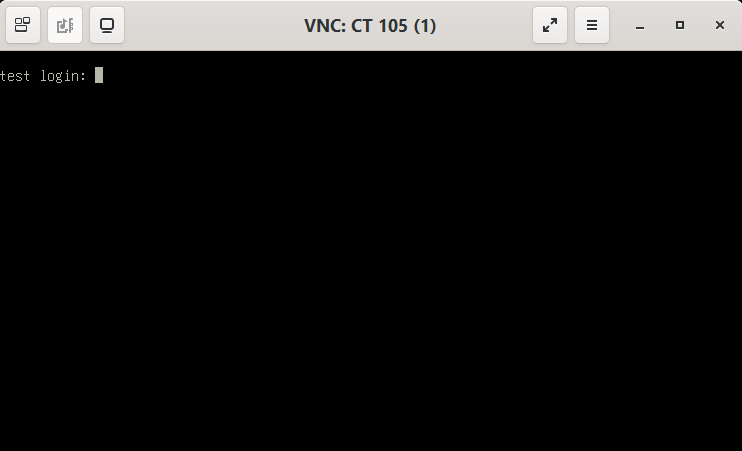
only from the local computer. The viewer window is titled VNC: VM <vmid> or VNC: CT <vmid>: